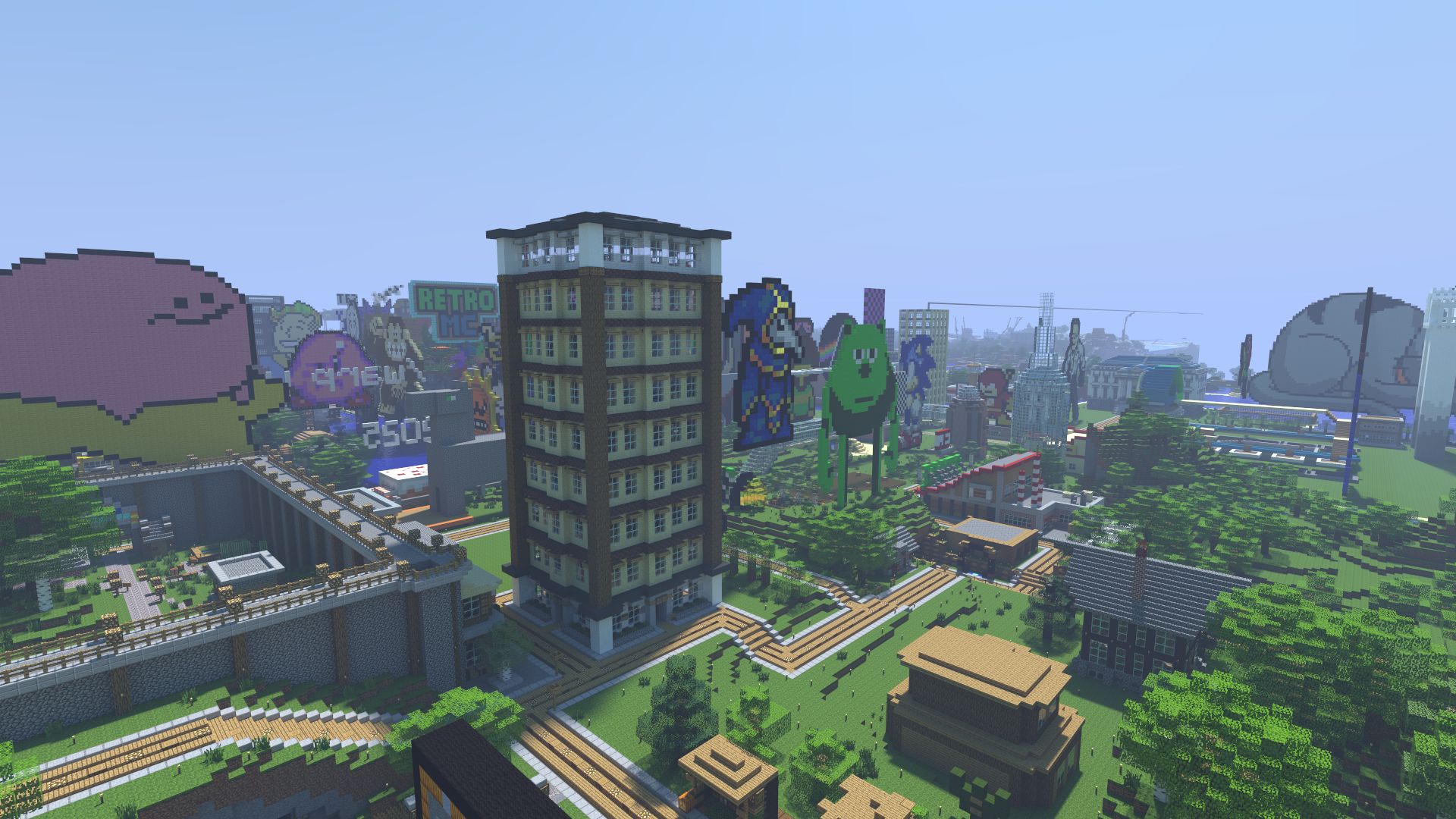
Beta Evolutions 2 is RetroMC’s client for Minecraft Beta 1.7.3. It’s the easiest way to play on Beta Minecraft with fixes for skins, capes and sounds.
1. Install Java
The launcher runs on Java. Java 25 is recommended. A recent Java 8 also works, but old Java 8 builds may encounter TLS/SSL exceptions.
- Download Java 25 from Adoptium and run the installer. On Windows, make sure Associate .jar is turned on in the installer so the launcher opens with a double-click.
- To check it worked, open a terminal (Command Prompt on Windows) and run
java -version. It should say version 25.
2. Download the launcher
- Go to the Beta Evolutions 2 download page.
- Tick I agree to the Beta Evolutions usage & IP terms.
- Under Launcher, choose Download launcher (.jar).
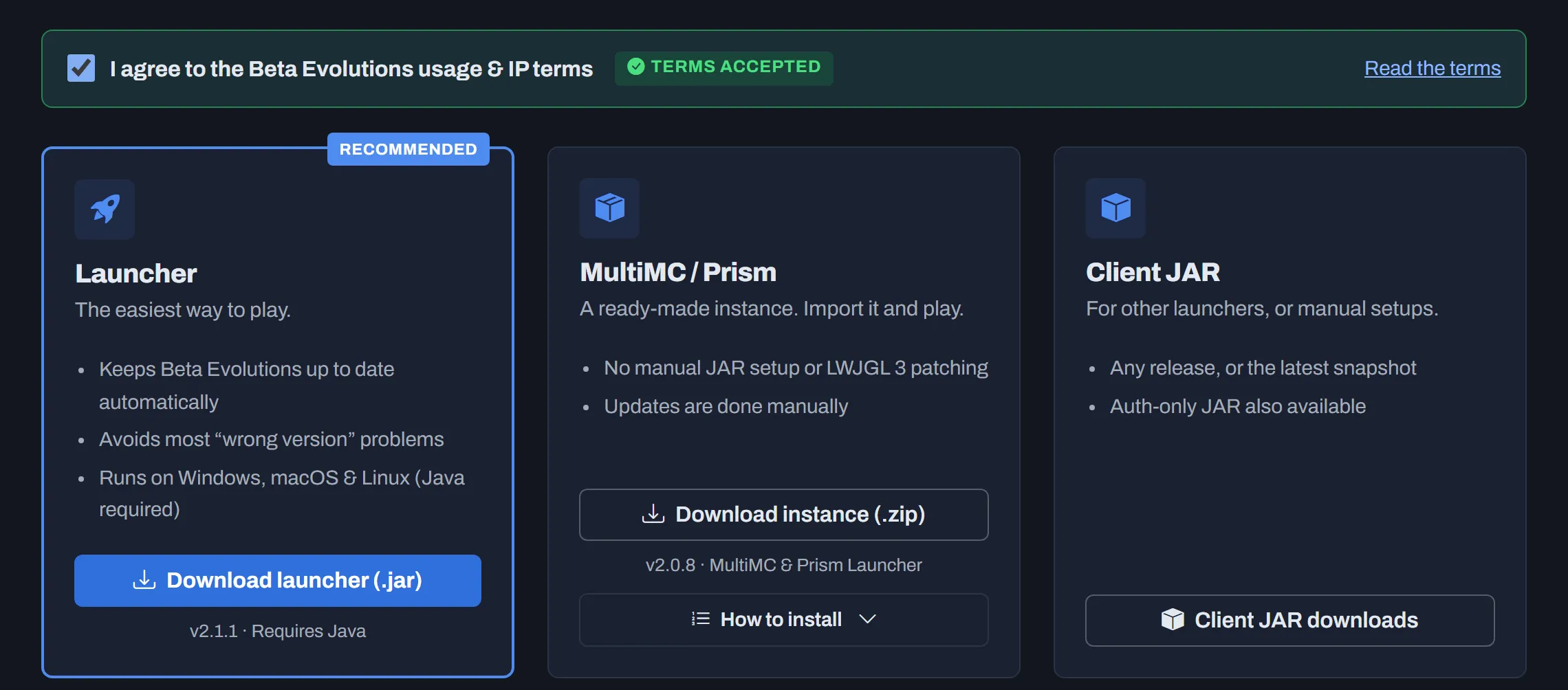
You get a file called beta-evolutions-launcher- followed by the version number, ending in .jar. Move it somewhere you’ll find it again, such as your desktop. The launcher updates itself, so you only download it once.
3. Open the launcher
Double-click the .jar file.
- If it opens as a zip file (in WinRAR or 7-Zip, for example), right-click it, choose Open with, and pick OpenJDK Platform binary or Java(TM) Platform SE binary.
- If nothing happens, open a terminal in the folder with the file and run
java -jarfollowed by the file name. - On macOS, if you’re told the file can’t be opened, right-click it and choose Open.
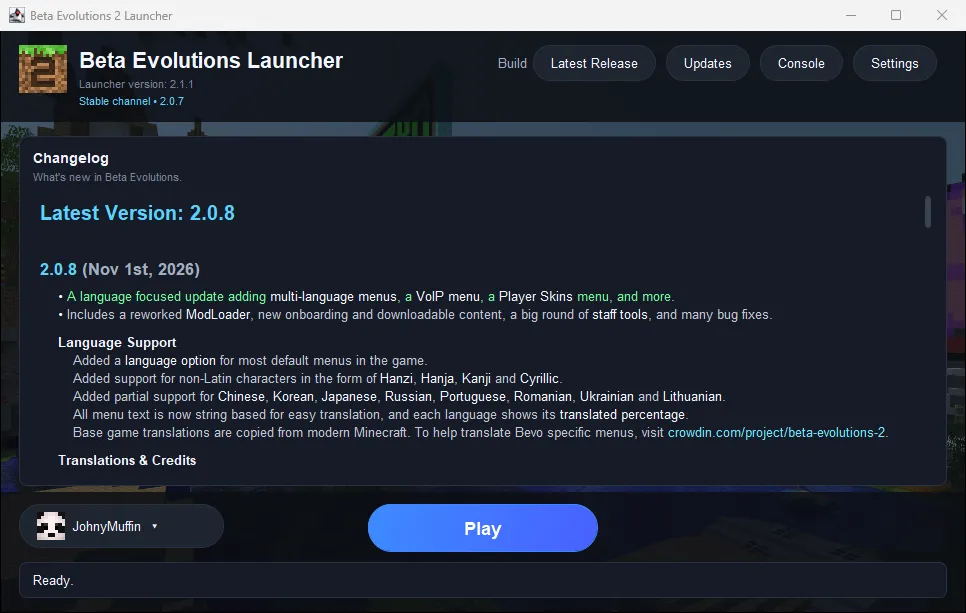
4. Sign in with your Microsoft account
- Choose the account button at the bottom left of the launcher, then Add Account.
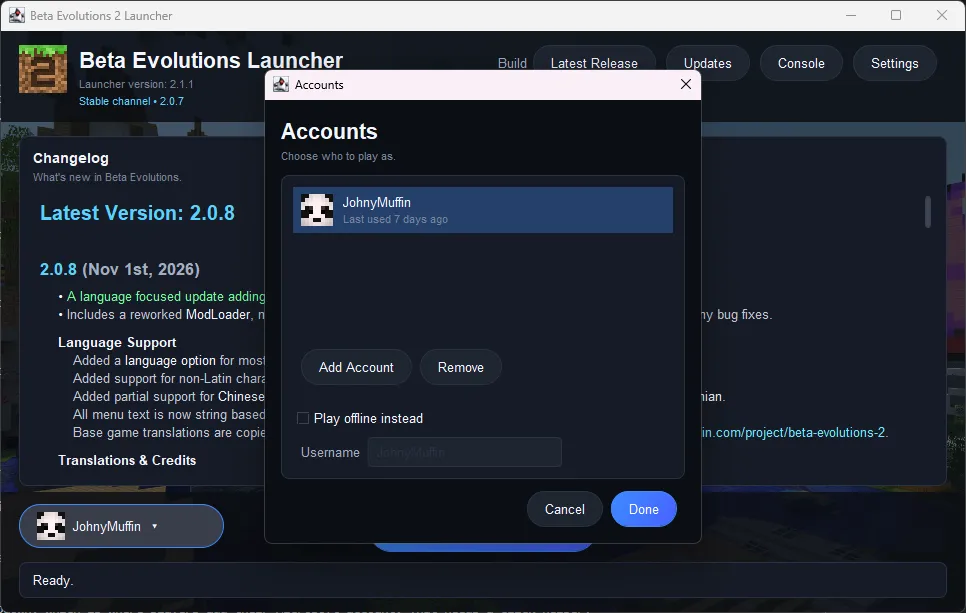
- The launcher shows a short code. Choose Open Sign-in Page (or go to microsoft.com/link), enter the code, and sign in with the Microsoft account you play Minecraft on.
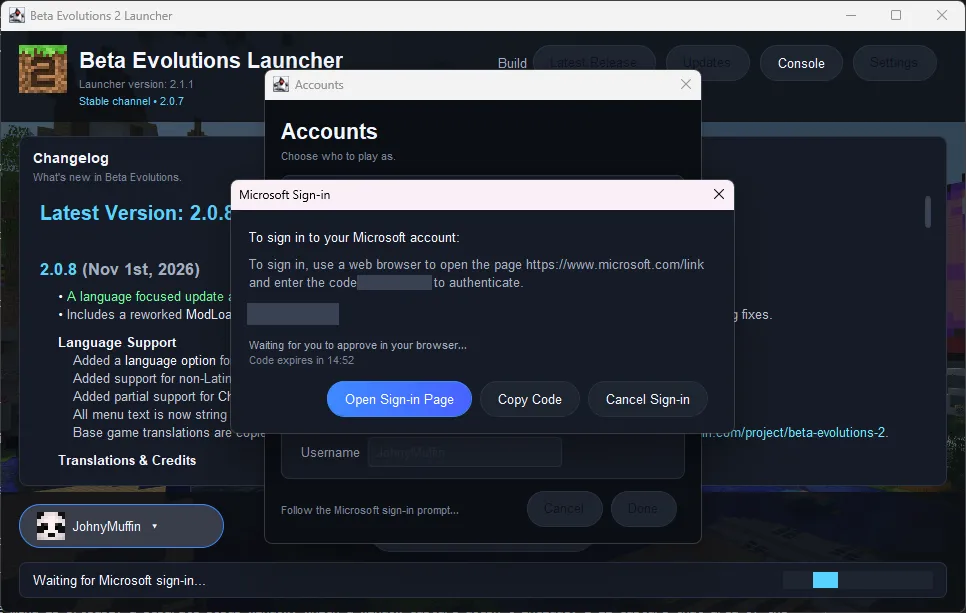
- Approve the sign-in in your browser. The launcher will detect the login on its own. Then choose Done.
The code expires after 15 minutes. If it runs out, choose Add Account again for a new one. You only sign in once as the launcher remembers your account.
No Microsoft account?
You can still use the launcher without a premium (paid) Minecraft account:
- Choose the account button at the bottom left of the launcher.
- Tick Play offline instead, type the username you want to play as in Username, then choose Done.
On RetroMC, players without a premium account have a dot added to the start of their username. We still recommend playing with a premium account.
5. Press Play
Choose Play. The launcher checks for updates, downloads the game files and opens Beta Evolutions 2. The first launch can take a few minutes.
6. Finish the first-run setup
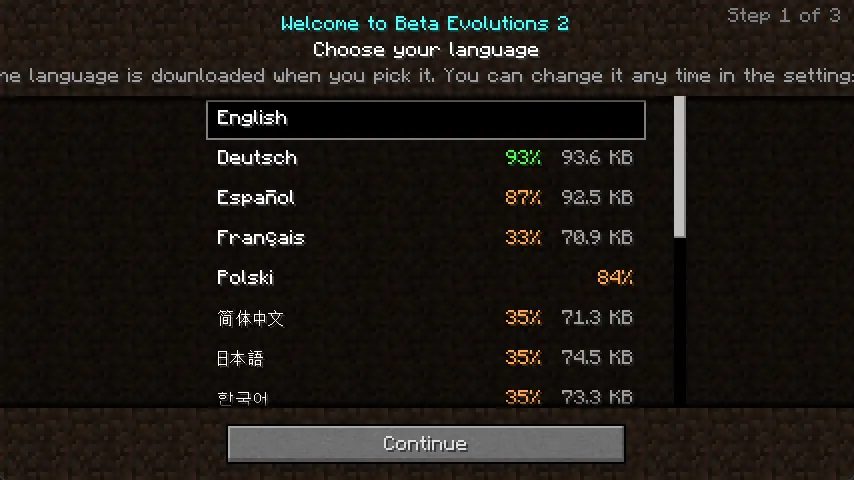
The first time the game opens, it walks you through three quick steps. You can change all of them later in the Beta Evolutions settings.
- Choose your language, then Continue.
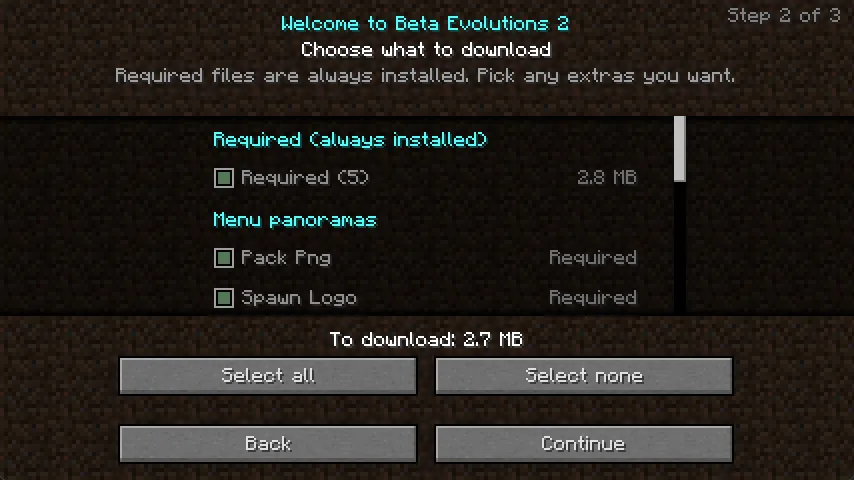
- Choose what to download. Required files are always installed. For the best experience, we recommend downloading everything: choose Select all, then Continue.
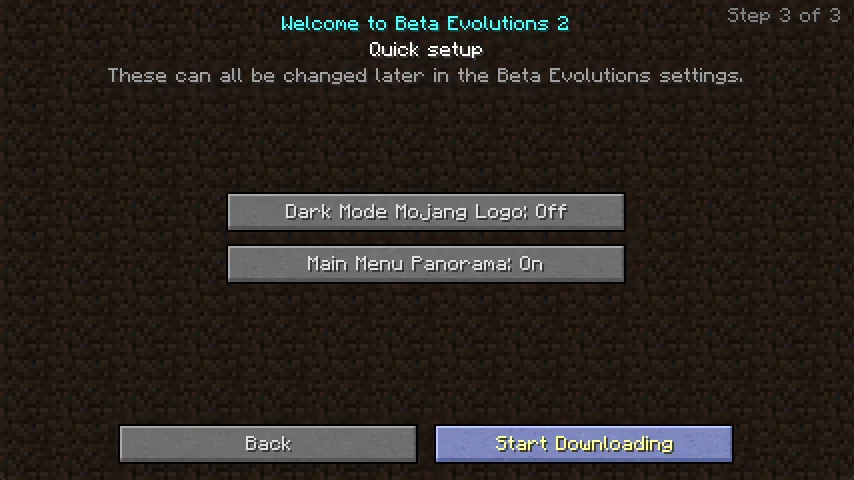
- Quick setup. Pick your options, then Start Downloading.
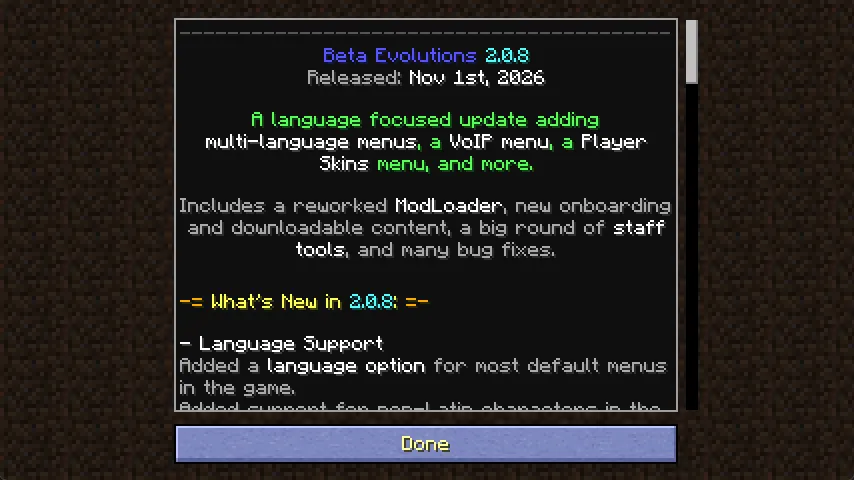
- Whats New. On the screen, choose Done.
You’re ready to play
You’re now on the main menu. Authenticated in the top right means you’re authenticed with Mojang (it says Offline Mode if the client is unable to authenticate), and Client is up to date in the bottom left means you have the latest version.
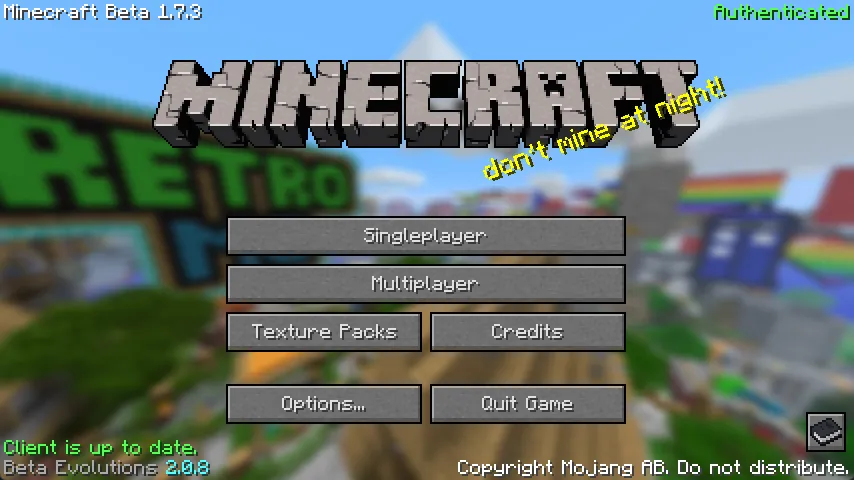
To join RetroMC, choose Multiplayer. RetroMC is already in the server list. For more, see How to join.
Using MultiMC or Prism Launcher instead
If you already use MultiMC or Prism Launcher, you can import a ready-made instance instead of using the Beta Evolutions launcher:
- On the download page, accept the terms and choose Download instance (.zip). Don’t extract it.
- In MultiMC or Prism, choose Add Instance, then Import from zip, and pick the file.
- Choose OK, then launch the new Beta Evolutions 2 instance.
This instance doesn’t update itself. To update, download the newest zip and import it as a new instance. The wiki’s installation guide covers other launchers and manual setups.
If something goes wrong
| Problem | What to try |
|---|---|
Double-clicking the .jar opens a zip program or does nothing |
Use Open with and pick Java, or run java -jar with the file name. If Java isn’t installed, go back to step 1. |
| Sign-in fails, or you see TLS or certificate errors | Update Java to Java 25 (or a recent Java 8), restart the launcher and try again. If it still fails, remove your account and add it again. |
| The first launch seems stuck | The first launch downloads everything, so give it a few minutes. If it’s still stuck, update Java. |
| Downloads fail or stall | Try another network, turn off any VPN or proxy, allow the launcher in your antivirus, and check you have free disk space. |
| The game crashes when it starts | Choose Console in the launcher, choose Copy, and post it on Discord with your operating system and Java version. |
There’s more help in the Beta Evolutions 2 FAQ, or ask on the RetroMC Discord.
Last updated 1 November 2026