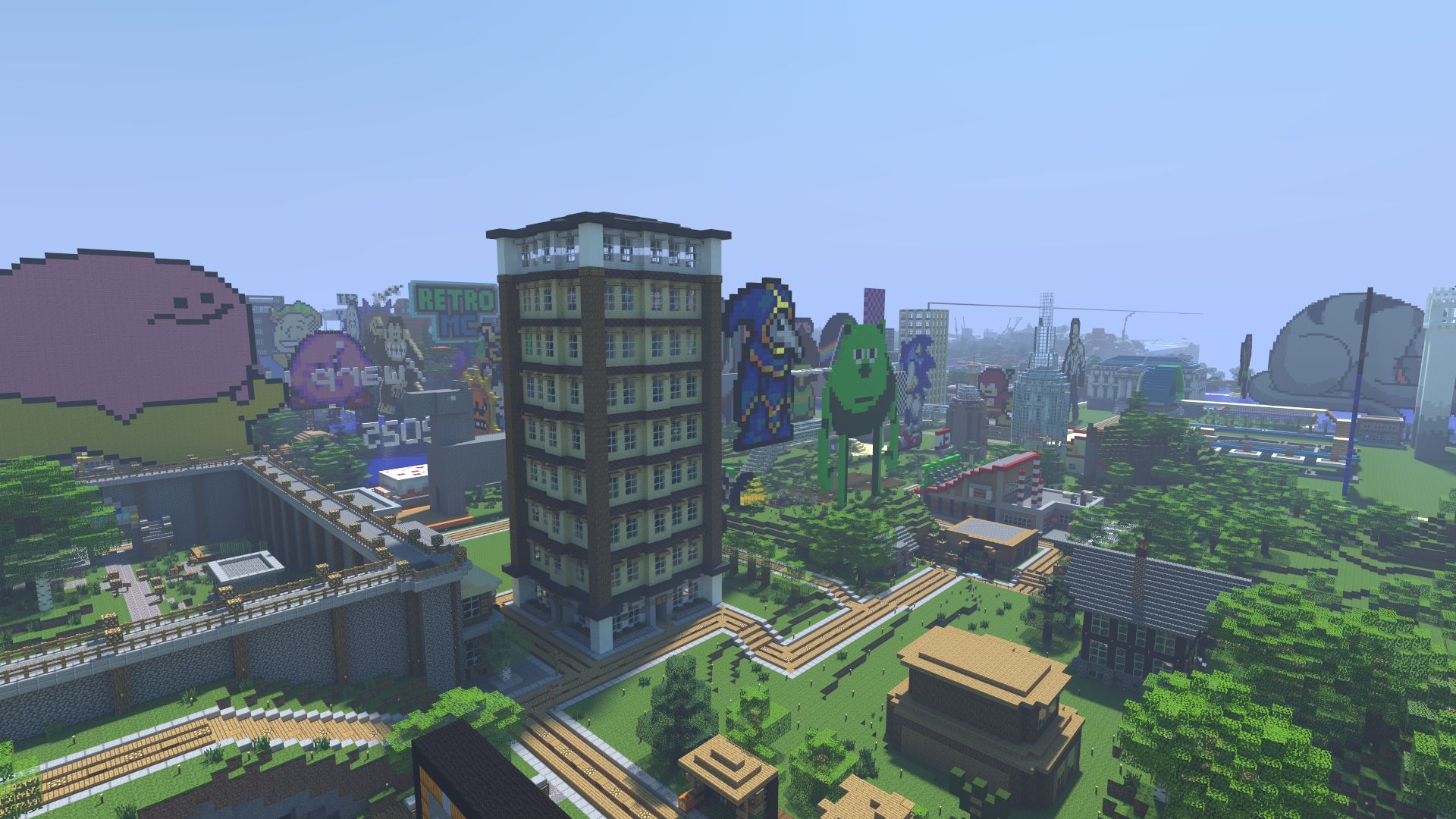
The official Minecraft Launcher can run Beta 1.7.3. It hides old versions by default, so you need to turn them on first.
You need a copy of Minecraft: Java Edition. The launcher comes with Java so you don’t need to install it yourself.
For skins, capes, fixed sounds and other improvements, use Beta Evolutions 2 instead. The plain Beta 1.7.3 client works on RetroMC, but it can’t show skins or capes because the old Mojang skin servers are offline.
Prefer a video?
This video by Garsooon walks through the same steps. The written guide below has the latest launcher screenshots.
If the video doesn’t load, watch it on YouTube.
1. Install and open the launcher
If you don’t have it yet, download the Minecraft Launcher from minecraft.net and install it. Open it and sign in with the Microsoft account you bought Minecraft on.
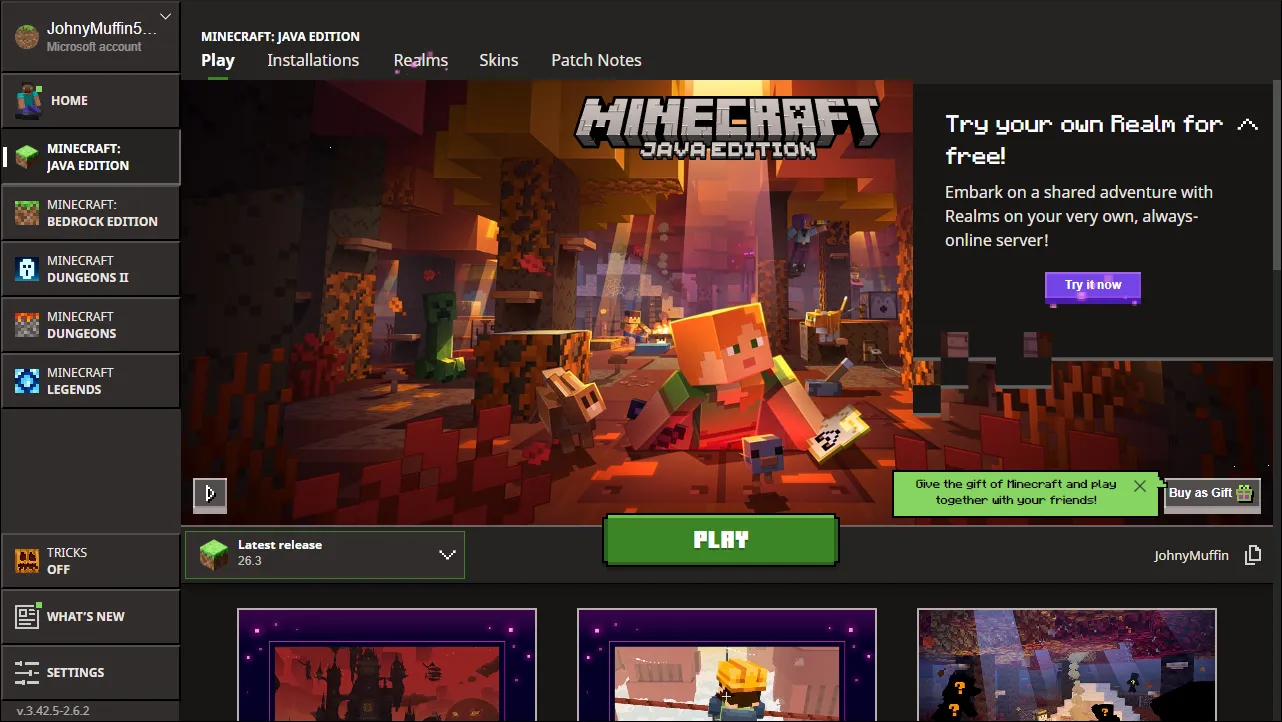
2. Turn on historical versions
- Choose Settings at the bottom left of the launcher.
- On the General tab, scroll down to Minecraft: Java Edition settings and tick Show historical versions of Minecraft: Java Edition in the Launcher.
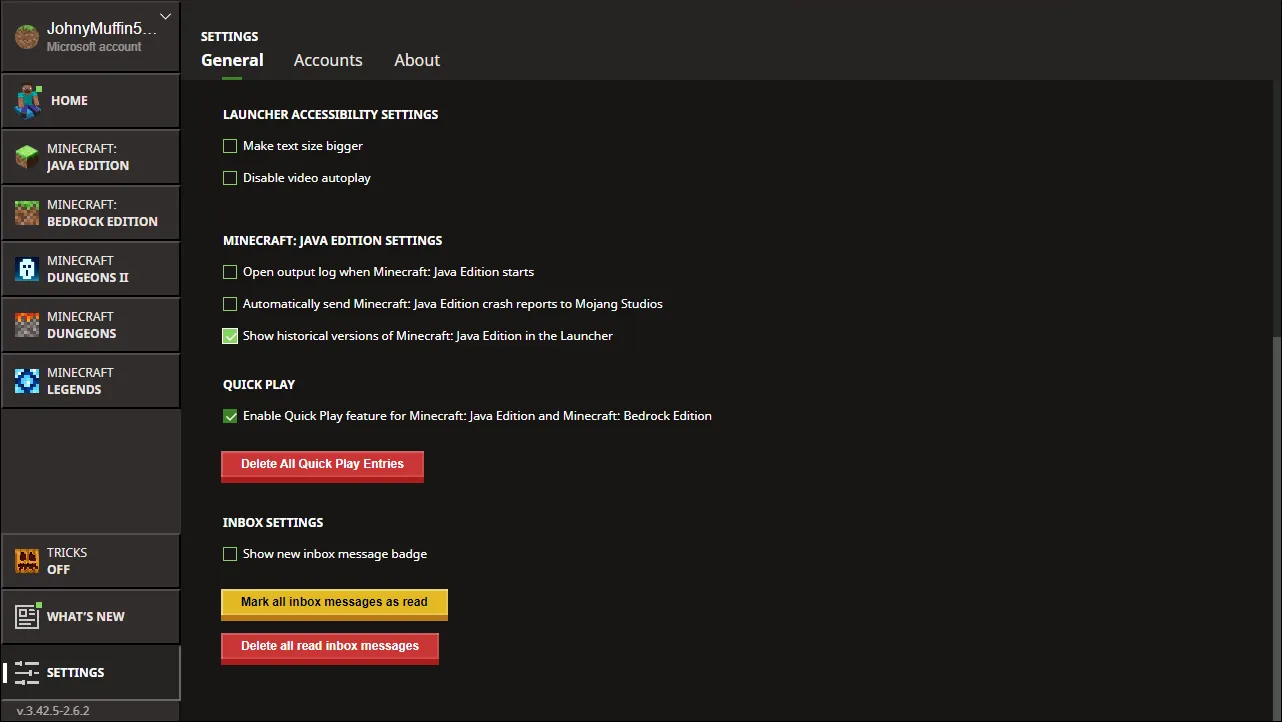
3. Create a Beta 1.7.3 installation
- Choose Minecraft: Java Edition in the sidebar, then the Installations tab.
- Choose New installation.
- In Name, type
B1.7.3. - Click the Version box and type
b1.7.3to filter the list, then choose old_beta b1.7.3.
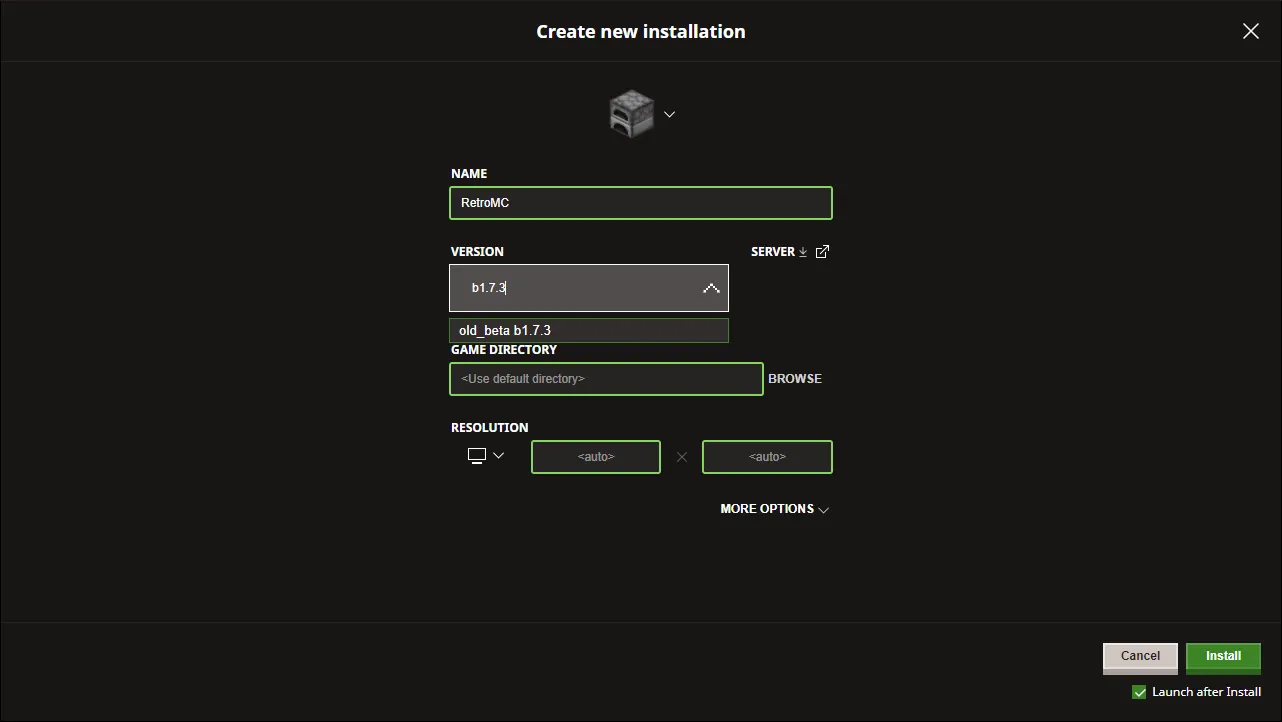
- Leave the other options as they are and choose Install.
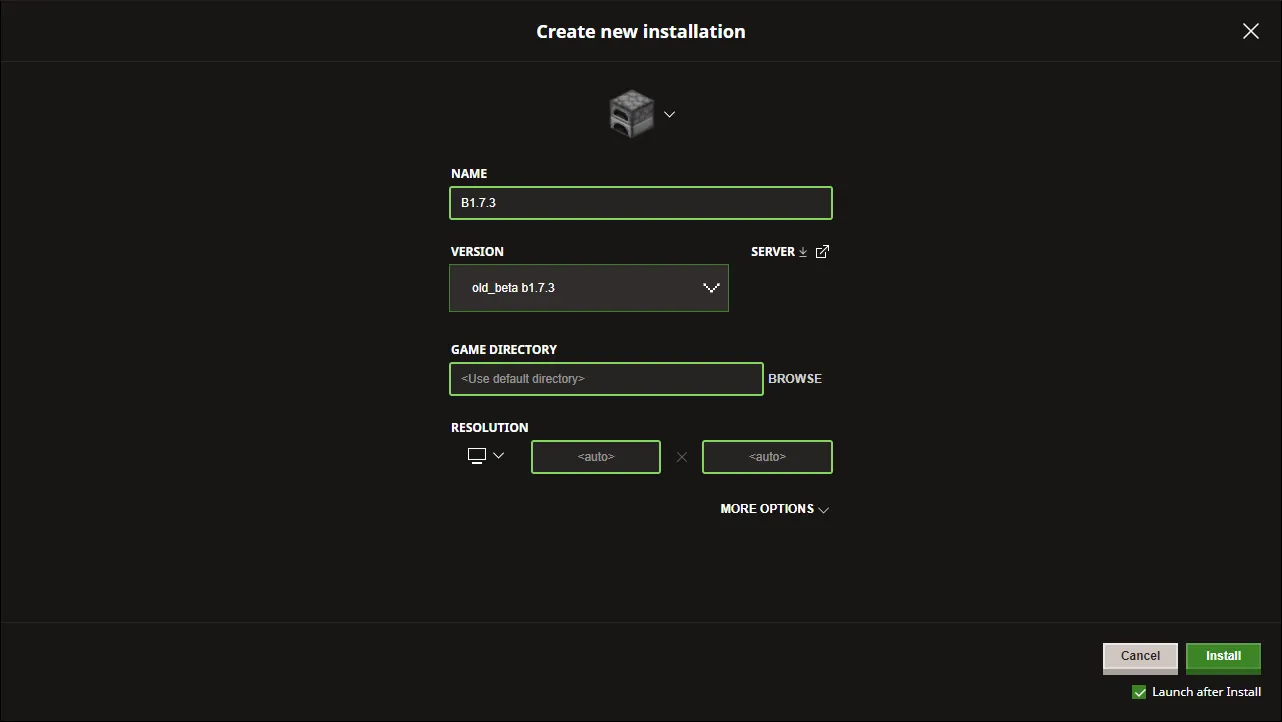
If you plan to make singleplayer worlds, we recommend setting a different Game directory before you choose Install, to keep them separate from your modern worlds.
4. Start the game
- Go to the Play tab.
- Open the version picker to the left of the Play button and choose B1.7.3.

- Press Play.
- The launcher warns that older versions don’t support the latest player safety features. Choose Play to continue. If you want to stop the warning coming back, tick I understand the risks first.
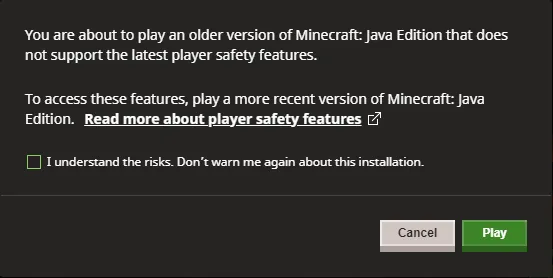
The first launch downloads the game files, which may takes a moment. Beta 1.7.3 opens in a small window. You can resize it or press F11 for full screen.
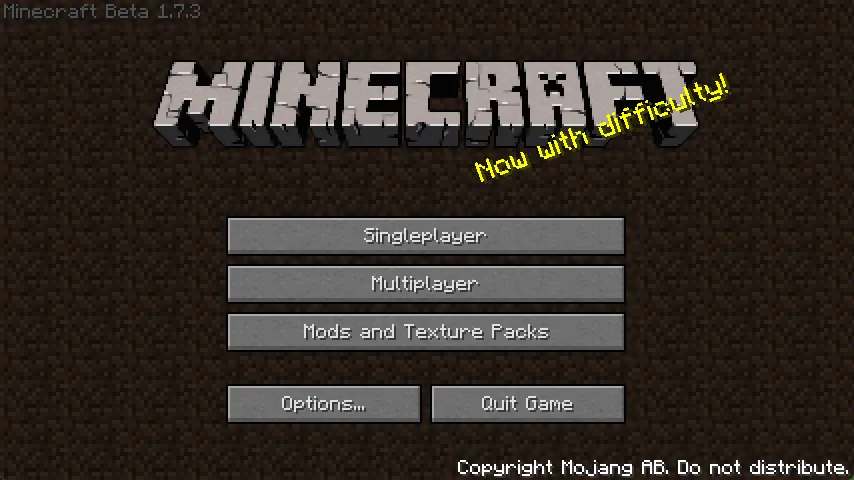
5. Join RetroMC
Beta 1.7.3 doesn’t have a server list. You type the address each time you join:
- On the main menu, choose Multiplayer.
- Enter
mc.retromc.org. - Choose Connect.
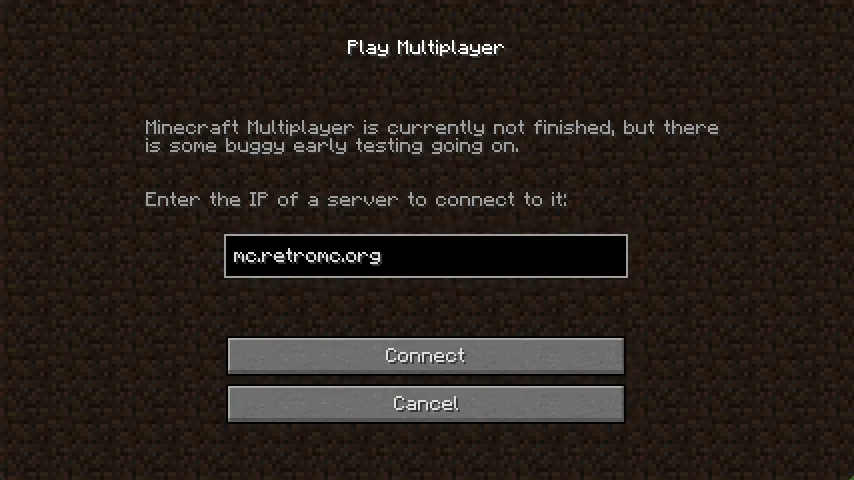
New to the server? See How to join for what to do once you’re in.
If something goes wrong
| Problem | What to try |
|---|---|
| old_beta b1.7.3 isn’t in the version list | Check that historical versions are turned on (step 2). If they are, turn the setting off and on again, then restart the launcher. |
| Other players show up with the default Steve skin, and capes don’t show | This is normal in the plain Beta 1.7.3 client. Install Beta Evolutions 2 to see skins and capes. |
| “Over account limit 5/5” when you join | Several accounts have connected from your IP address. Install Beta Evolutions 2 to join. |
| The game crashes or shows a black screen when it starts | Update your graphics drivers and try again. If it still fails, try Beta Evolutions 2, which uses a newer graphics library. |
| The game window is tiny | Drag the window edges to resize it, or press F11 for full screen. |
There’s more help in the wiki’s Beta 1.7.3 installation guide, or ask on the RetroMC Discord.
Last updated 1 November 2026