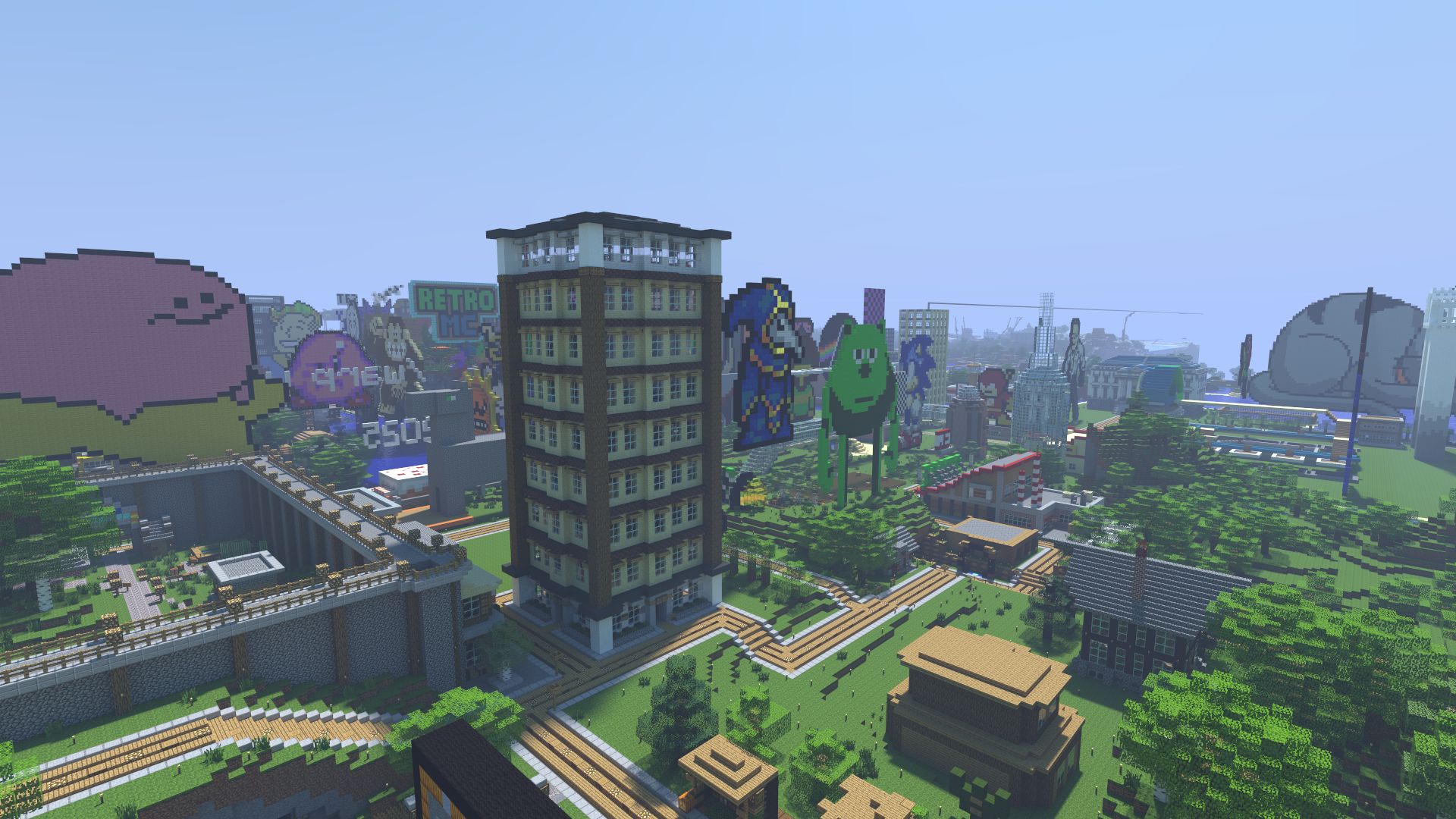
Players with the Mystic rank or above can set a custom cape/cloak on RetroMC via the dashboard.
Who can have a cape
Capes are available to Mystic, Diamond Citizen, Donator, Donator+ and Donator++, and to staff. You can get Mystic or a higher rank from the RetroMC store.
A new rank may take 5 minutes after buying to reflect on the dashboard.
1. Make your cape image
A cape is a small PNG image:
- exactly 22×17 pixels
- a PNG file, under 1 MB
The image is laid out like the cape part of a Minecraft cape texture. The large blue area is what other players see when they stand behind you.
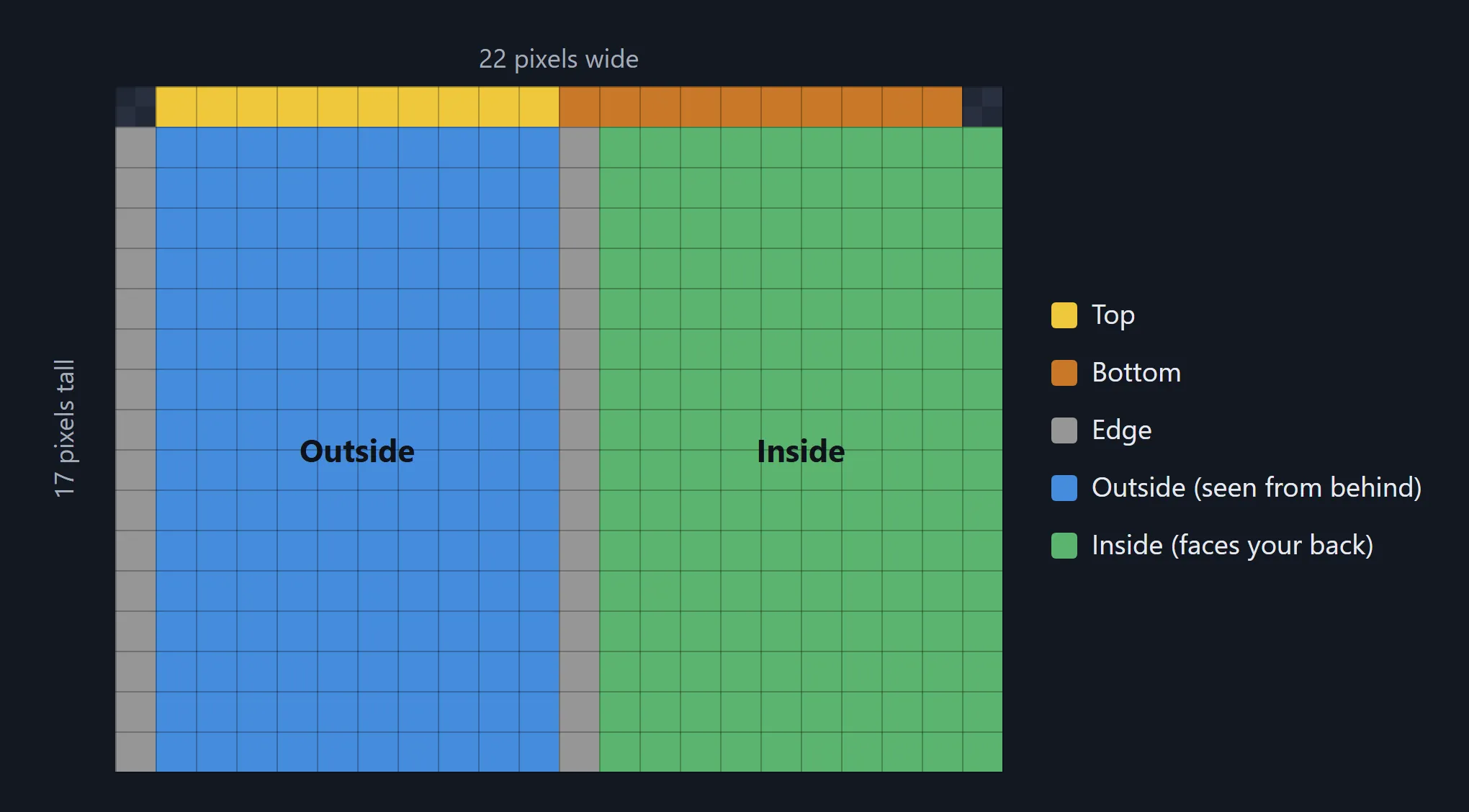
Download the cape template (22×17, colour-coded like the picture above) and paint over it in any image editor that can save PNG files, such as Paint.NET or GIMP. Keep the canvas at 22×17 pixels. If you made your cape bigger, resize it to exactly 22×17 with nearest-neighbour scaling before you upload it, so the pixels stay sharp.

2. Sign in to the dashboard
- Join RetroMC on
mc.retromc.organd log in. - Type
/jcode webin chat. You’ll get a 6-character code. - Go to dashboard.retromc.org, enter your Minecraft username and the code, and choose Sign in.
Codes change every 5 minutes, so use yours straight away. You never need your password on the dashboard.
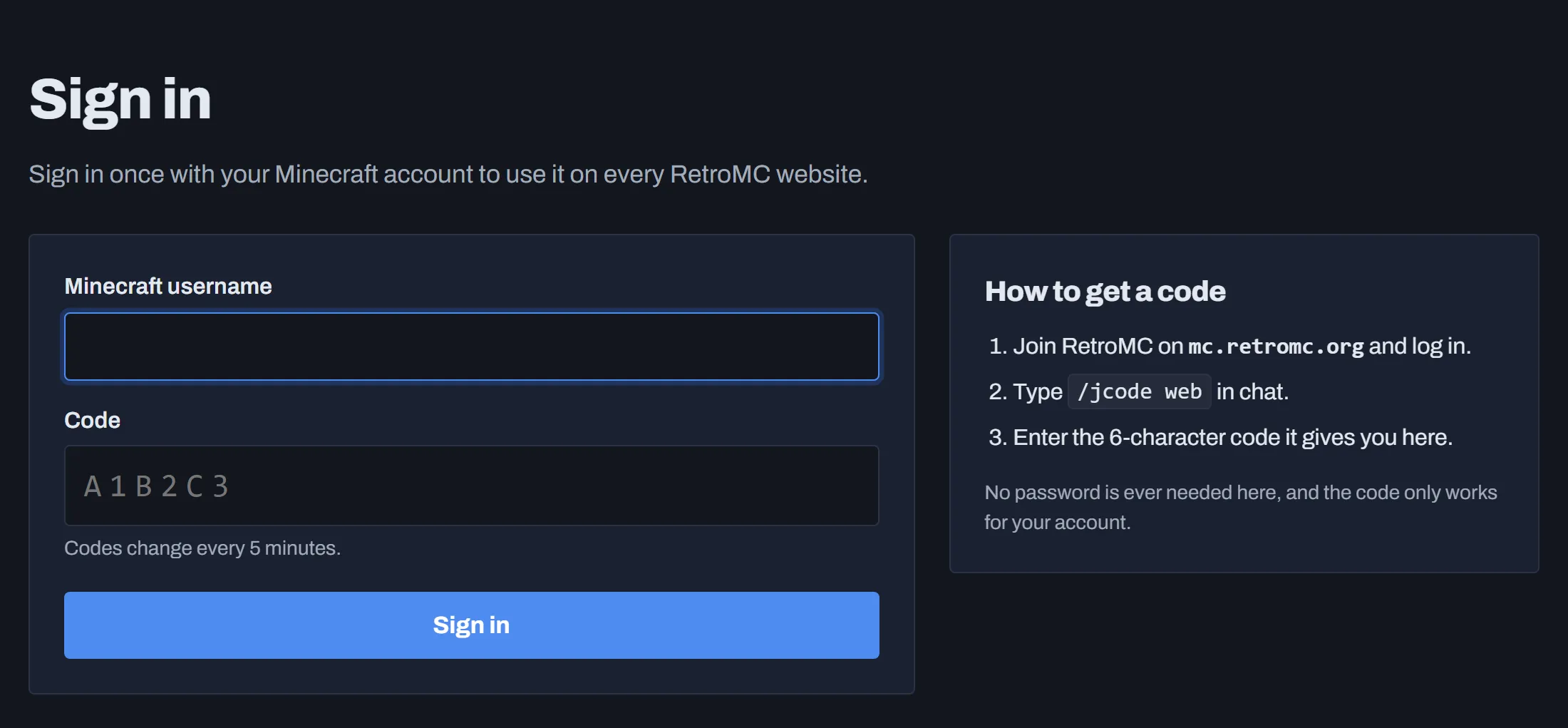
Once you’re signed in, you stay signed in on every RetroMC website.
3. Open Cosmetics
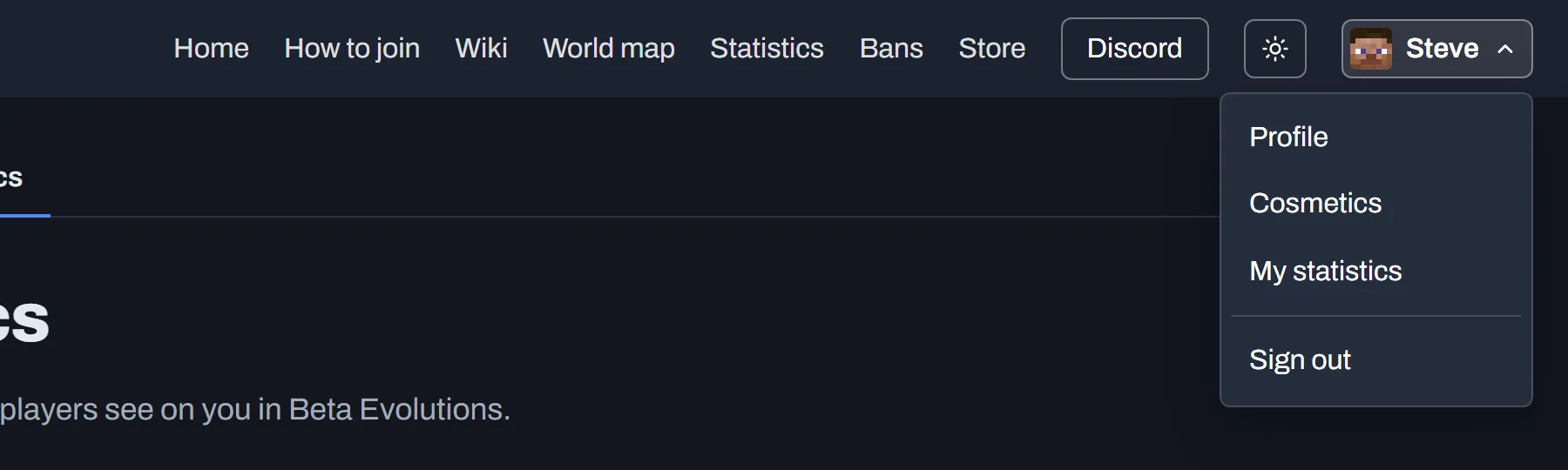
Choose your name in the top right of any RetroMC website, then choose Cosmetics. You can also go straight to dashboard.retromc.org/cosmetics.
4. Upload your cape
Under Upload a cape, choose Choose File, pick your PNG, then choose Upload cape.
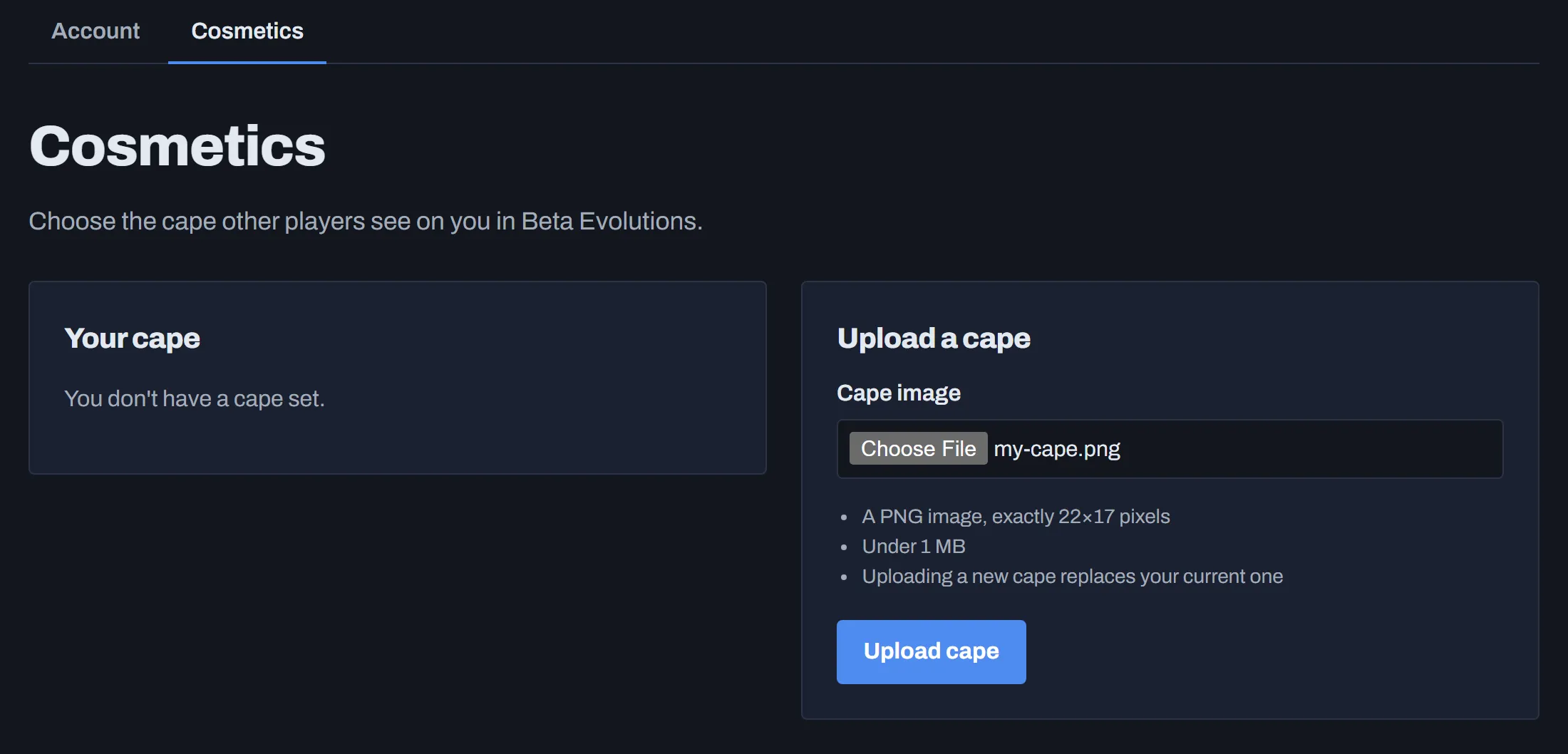
When it’s saved, your cape appears under Your cape.
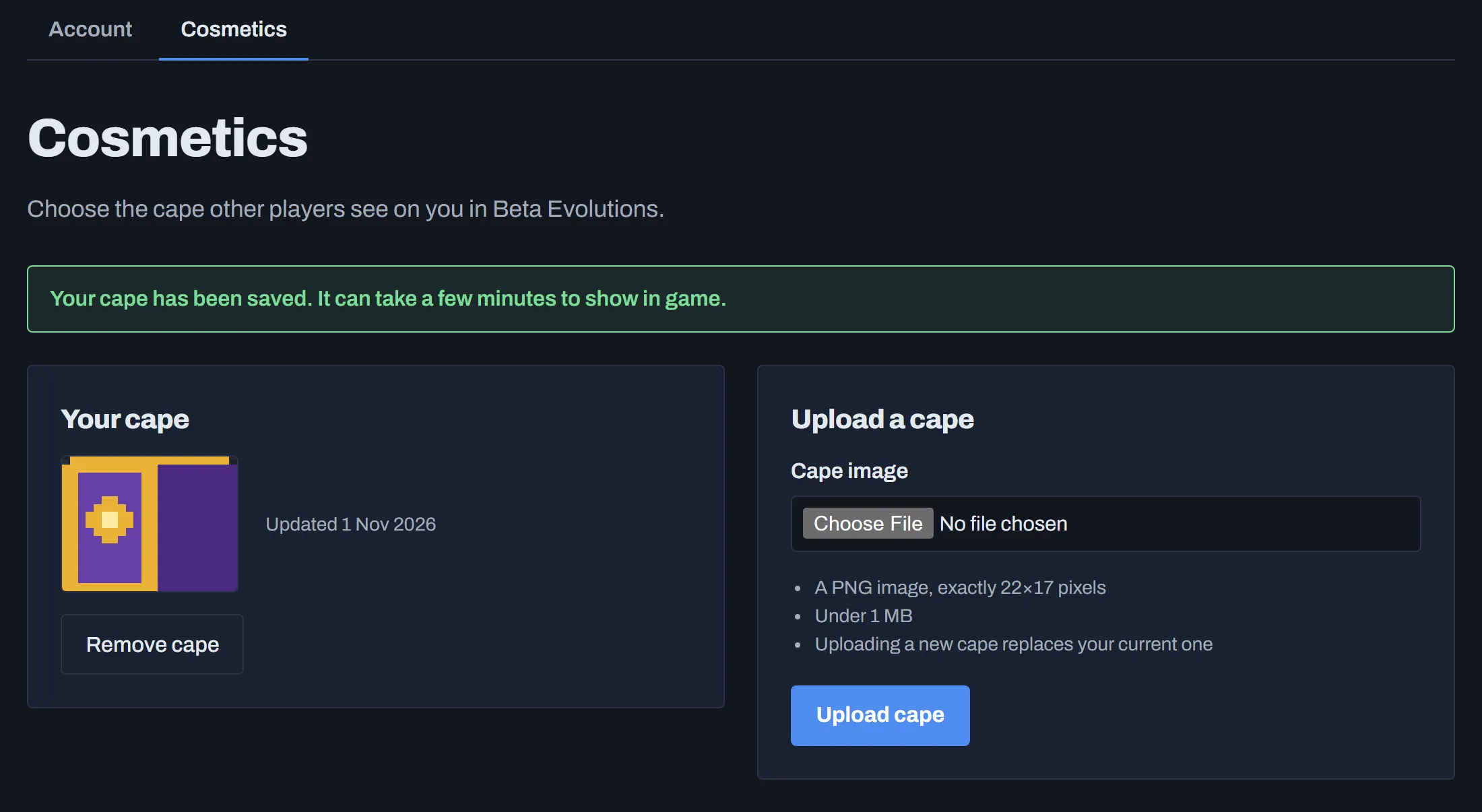
5. See it in game
Capes show in Beta Evolutions 2, RetroMC’s client for Beta 1.7.3. It can take a few minutes for a new cape to show up. If you don’t have it yet, see How to install Beta Evolutions 2.
Changing or removing your cape
- To change it, upload a new image. It replaces your current cape.
- To remove it, choose Remove cape on the Cosmetics page. Anyone can remove their own cape, whatever their rank.
If the upload doesn’t work
| Message | What to do |
|---|---|
| A cape must be exactly 22×17 pixels. | Resize the image to exactly 22×17 pixels and upload it again. |
| That file is not a PNG image. | Save the image as a PNG. Renaming a JPG to .png doesn’t work. |
| That PNG file is damaged or incomplete. | Save the image again from your editor and re-upload it. |
| That file is too big. Capes must be under 1 MB. | Save it again without extra data. A 22×17 PNG is normally less than 1 KB. |
| Capes are available to Mystic and above. | Your account doesn’t have a cape rank yet. If you just bought one, wait 5 minutes and try again. |
| We couldn’t check your rank right now. | Try again in a few minutes. |
Still stuck? Ask on the RetroMC Discord.
Last updated 1 November 2026